 v0.1.2Productivity · Reading
Save it now, read it later — even offline
A clean offline copy of any article, on your device. No account.
Free · Local-first · No account required
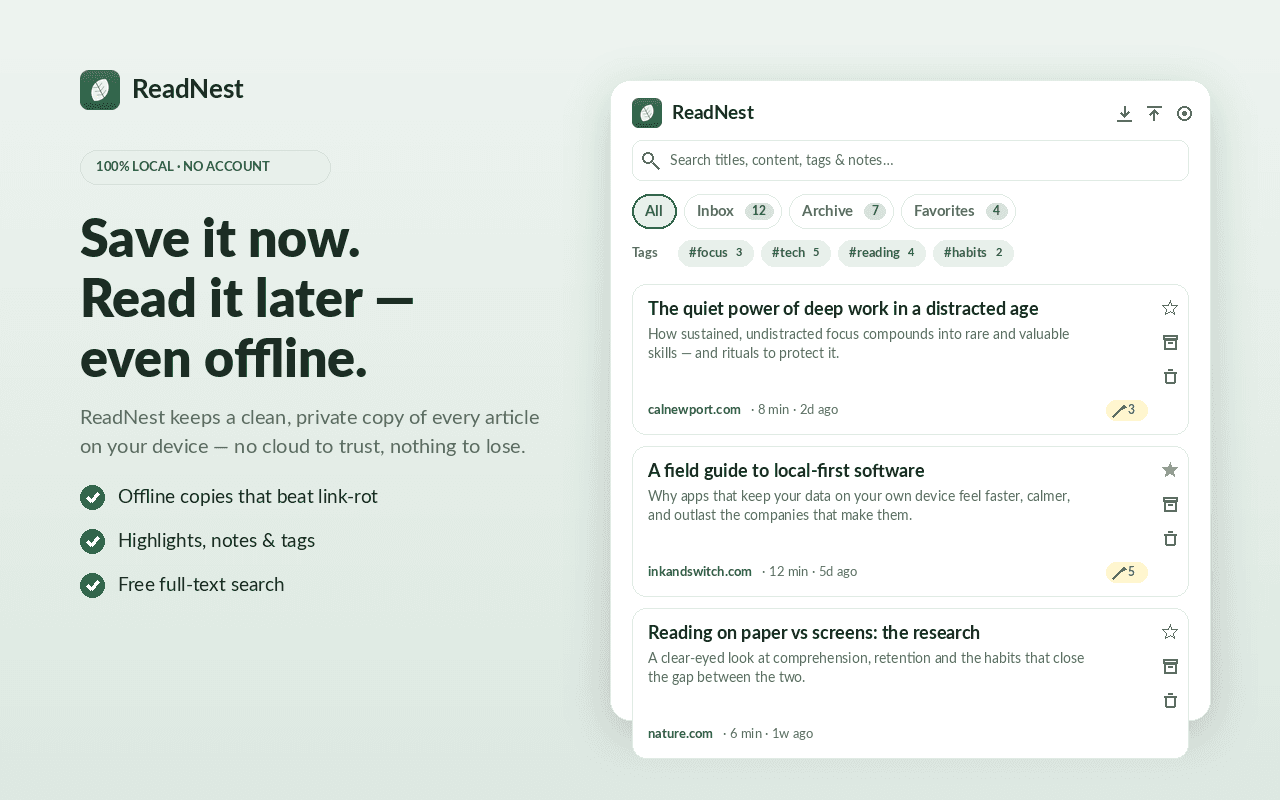
Save it now, read it later — even offline.
ReadNest is a calm, 100% local read-it-later app: one click stores a clean copy of any article on your own device, so your reading list is fast, private, and never at the mercy of a service that shuts down.
Read beautifully in a distraction-free reader (light, sepia or dark; serif or sans; adjustable size and width), highlight in five colours and add notes, organise with Inbox, Archive and Favorites plus free-form tags, and find anything with full-text search across titles, content, tags and notes.
No account. No cloud. No tracking. Nothing you save ever leaves your browser. Export anything to Markdown, EPUB, HTML, JSON or CSV — and import your list from Pocket or Instapaper in one click, all processed locally.
Features
Everything ReadNest does
One-click save
Toolbar button, right-click “Save to ReadNest”, or Alt+Shift+S.
Offline copies that last
ReadNest keeps the actual article text on your device, so it survives paywalls, link rot, and apps that get discontinued.
Clean reader
A distraction-free reader with light / sepia / dark themes, serif or sans, adjustable size and width, and a progress bar that remembers where you left off.
Highlight & annotate
Select text to highlight in five colours and attach your own notes.
Organize
Inbox, Archive and Favorites, plus free-form tags.
Full-text search
Free search across titles, article content, tags and your notes — not hidden behind a paywall.
Export anything
Markdown, EPUB, HTML, JSON backup or CSV — one article or your whole library.
Migrate in one click
Import your list from Pocket (HTML/CSV) and Instapaper (CSV), plus ReadNest JSON backups — all parsed locally.
Side-panel library
Your whole library in Chrome's side panel, with keyboard shortcuts.
Screenshots
See it in action
How it works
Up and running in seconds
- 1
Install ReadNest
Add it from the Chrome Web Store and pin it to your toolbar.
- 2
Save in one click
On any article, click ReadNest, press Alt+Shift+S, or right-click → “Save to ReadNest.” A clean copy is stored on your device.
- 3
Read & highlight
Open it in the calm reader, pick a theme and text size, and highlight passages in five colours with your own notes.
- 4
Organise & find
Tag and file articles into Inbox, Archive or Favorites, and search across everything — even offline.
Keyboard
Shortcuts
| Action | Windows / Linux | macOS |
|---|---|---|
| Save the current page to ReadNest | Alt+Shift+S | Option+Shift+S |
| Open the ReadNest library | Alt+Shift+L | Option+Shift+L |
Privacy
Why each permission is needed
ReadNest asks for the minimum and explains every one.
activeTabReads the current page's article only when you click Save (toolbar, right-click, or Alt+Shift+S), so a clean offline copy can be stored locally. Not used to monitor browsing or other tabs.
scriptingInjects a one-time content-extraction script into the active tab you are saving, to pull out the article's text and images. All scripts are bundled in the extension; no remote code.
storageSaves your preferences (theme, font, defaults) via chrome.storage.local. Saved articles are stored in your browser's IndexedDB. Nothing is transmitted off the device.
sidePanelDisplays your saved-article library in Chrome's side panel.
contextMenusAdds the right-click “Save to ReadNest” menu item.
Read the full privacy policy.
Save it now, read it later — even offline
Save articles to read later — offline & private, no account. Clean reader, highlights, tags, search, export to EPUB/Markdown.