 v0.1.1Productivity · Workflow & Planning
Save any window in one click
Sessions, auto-backups, instant search — all local.
Free · Local-first · No account required
Never lose your tabs again.
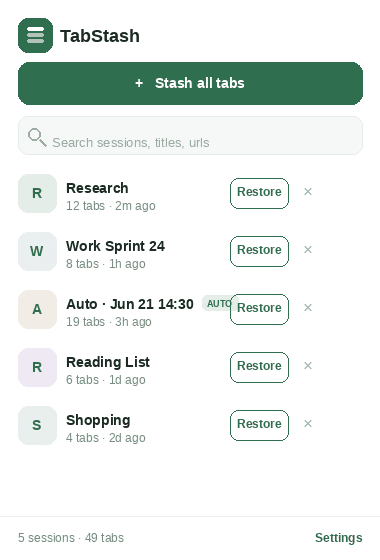
TabStash saves your open tabs as named sessions and brings them back with one click — and it quietly keeps automatic local backups in the background, so a crash, a browser update, or an accidental close can't wipe your work.
Everything stays on your device: no account, no servers, no tracking. TabStash asks for the minimum permissions, reads your tabs' titles and URLs only when you save a session, and never sends data anywhere.
Made for researchers, power-browsers, and anyone who keeps a lot of tabs and doesn't want to lose them.
Features
Everything TabStash does
One-click “Stash all tabs”
Save every tab in the current window as a named session with a single click, a right-click menu item, or a keyboard shortcut.
Automatic local backups
TabStash keeps periodic local backups on a schedule you choose and retains the newest N snapshots (default 10), so a crash or accidental close can't lose your work.
Instant search
Filter sessions by name, tab title, or URL and find anything in seconds.
One-click restore
Reopen a whole session in a fresh window with a single click.
Export & import
Back up to JSON, Markdown, or CSV; import JSON to merge sessions across machines.
Keyboard shortcuts
Open TabStash (Ctrl/Cmd+Shift+S) and stash all tabs (Ctrl/Cmd+Shift+U) without touching the mouse.
Right-click menu
A single context-menu action — “Stash all tabs in this window” — for fast saves.
Settings you control
Configure the backup interval and how many snapshots to keep, and view your usage from the options page.
Screenshots
See it in action
How it works
Up and running in seconds
- 1
Install TabStash
Add it from the Chrome Web Store and pin it to your toolbar for one-click access.
- 2
Stash a window
Click “Stash all tabs” (or press Ctrl/Cmd+Shift+U) to save every tab in the current window as a named session.
- 3
Search & restore
Open TabStash (Ctrl/Cmd+Shift+S), search by name, title or URL, and click Restore to reopen a session in a fresh window.
- 4
Relax — backups are automatic
TabStash keeps periodic local backups and retains the newest snapshots, so you always have a recent restore point.
Keyboard
Shortcuts
| Action | Windows / Linux | macOS |
|---|---|---|
| Open TabStash | Ctrl+Shift+S | Cmd+Shift+S |
| Stash all tabs in the current window | Ctrl+Shift+U | Cmd+Shift+U |
Privacy
Why each permission is needed
TabStash asks for the minimum and explains every one.
tabsReads the title and URL of your open tabs only at the moment you save a session. TabStash never monitors browsing and does not run on page content.
storageSaves your sessions and settings locally in the browser (chrome.storage.local). This is the only data store; nothing is sent to a server.
alarmsRuns the optional periodic local backup on the interval you choose, so a crash or accidental close cannot lose your tabs.
contextMenusAdds a single right-click action, “Stash all tabs in this window”, as a convenient way to save a session.
Read the full privacy policy.
FAQ
Questions, answered
Save any window in one click
Save & restore tab sessions with automatic local backups, instant search and one-click restore. Local-first. No account.