 v0.1.0Image Tools
A private, local image toolkit
Resize, compress & convert images — batch-friendly and offline.
Free · Local-first · No account required
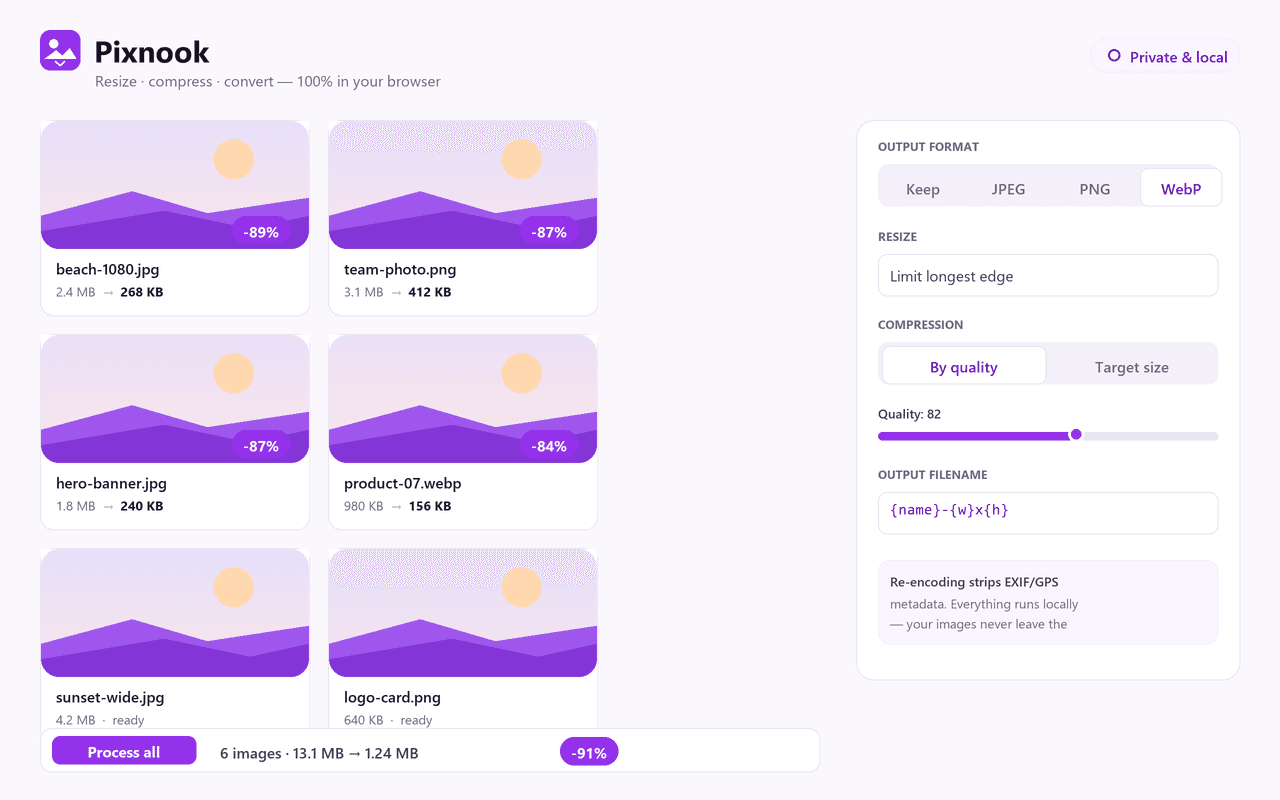
Pixnook resizes, compresses and converts images right inside your browser — batch-friendly, lightning fast, and 100% private. There's no upload, no account and no waiting on someone else's server: drop in a single photo or a whole folder and Pixnook does all the work locally with the browser's Canvas API, so your pictures never leave your computer.
Resize by exact dimensions, percentage, longest edge, or a ready-made social and device preset — Instagram, X, Facebook, LinkedIn, YouTube, Pinterest and more — with aspect-lock and a "never enlarge" guard. Compress with a quality slider or aim for an exact file size (tell Pixnook to get an image under 300 KB and it will), and convert freely between JPG, PNG and WebP.
Working with a stack of images? Batch a whole folder at once with live before/after savings, custom filename patterns, and a one-click ZIP download — entirely offline. A side-panel quick optimizer and a full Studio editor are each a keyboard shortcut away.
Most "free image compressor" sites quietly upload your photos to their servers, so your images — along with their GPS, faces and metadata — end up on someone else's machine. Pixnook does everything on your device: it's faster (no upload/download round-trip), it works offline, and re-encoding automatically strips EXIF/GPS metadata. Drop in your photos, pick a preset or a target size, and grab the optimized set in seconds.
Features
Everything Pixnook does
Smart resize
Resize by exact dimensions, percentage or longest edge — or pick a social & device preset (Instagram, X, Facebook, LinkedIn, YouTube, Pinterest) with aspect-lock and a "never enlarge" guard.
Compress to a target size
Dial in quality with a slider, or aim for an exact file size — tell Pixnook to get an image under 300 KB and it gets there.
Convert formats
Convert freely between JPG, PNG and WebP, picking the smallest format for each job.
Batch & one-click ZIP
Process a whole folder at once with live before/after savings and custom filename patterns, then download the optimized set as a single ZIP.
Fast & offline
Everything runs locally with the Canvas API, so there's no upload/download round-trip — it's quick and works with no connection.
Private by design
Your images never leave your device, there's no account, analytics or tracking, and re-encoding automatically strips EXIF/GPS metadata.
Screenshots
See it in action
How it works
Up and running in seconds
- 1
Install Pixnook
Add it from the Chrome Web Store and pin it to your toolbar.
- 2
Drop in your images
Open the quick optimizer (Alt+Shift+I) or the Studio (Alt+Shift+K) and drag in one photo or a whole folder.
- 3
Pick a size, quality or format
Resize by dimensions, percentage, longest edge or a social preset; compress by quality or to a target file size; and choose JPG, PNG or WebP.
- 4
Download
Grab a single optimized image or download the whole batch as one ZIP — all without anything leaving your browser.
Keyboard
Shortcuts
| Action | Windows / Linux | macOS |
|---|---|---|
| Open the Pixnook quick optimizer | Alt+Shift+I | Option+Shift+I |
| Open the Pixnook Studio (full editor) | Alt+Shift+K | Option+Shift+K |
Privacy
Why each permission is needed
Pixnook asks for the minimum and explains every one.
storageSaves your settings and saved presets locally via chrome.storage.local on your device. Nothing is sent anywhere.
sidePanelPowers the quick optimizer that opens in Chrome's side panel for fast, in-place resizing and compression.
commandsEnables the keyboard shortcuts that open the quick optimizer (Alt+Shift+I) and the Studio (Alt+Shift+K).
host access (factory-chrome-extensions.vercel.app)Used only to fetch a small display-configuration file that decides whether to show the optional Support / Go Pro buttons. No personal data and no images are ever sent, and Pixnook falls back to built-in defaults if the request fails.
Read the full privacy policy.
FAQ
Questions, answered
A private, local image toolkit
Private, offline image resizer, compressor & converter: batch resize, target-size compression, JPG/PNG/WebP convert, social presets and one-click ZIP.